


The Worst Moment for That Message
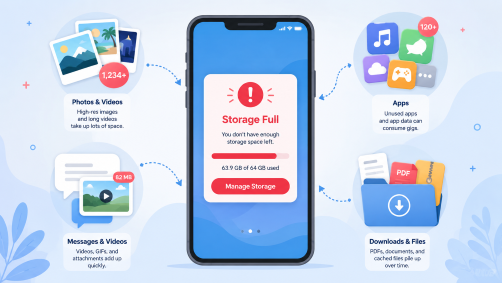
You are at your granddaughter’s birthday party. She is about to blow out the candles. You pull out your phone, open the camera, and the screen shows a message you have seen before and dread every time: Storage Almost Full. You must free up space to take more photos.
You put the phone away. You miss the moment.
Both Android and iPhone devices trigger the storage almost full alert when remaining space drops too low for new apps, system updates, or media. It always seems to happen at the worst possible time. But the frustrating truth is that most of the space being consumed on your phone is not being taken up by the things you think. It is being quietly devoured by hidden culprits working in the background, often without your knowledge.
The good news: you do not need to buy a new phone or pay for more storage. You just need to know where to look.
First, Find the Culprit
Before deleting anything, take sixty seconds to see exactly what is eating your storage.
On an iPhone, go to Settings, then General, then iPhone Storage. You will see a color-coded bar showing how much space is used by photos, apps, media, messages, and system data, followed by a list of every app on your phone sorted from largest to smallest. This is your treasure map.
On an Android phone, go to Settings, then Storage. The layout varies slightly depending on your phone brand, but you will see the same breakdown. The biggest culprits are usually high-resolution photos and videos, large apps and games, files stored by social apps like WhatsApp, Instagram, and TikTok, cached data and temporary files, and offline maps, downloads, and podcasts.
Now let’s go after them one by one.
The Big One: Photos and Videos
Photos and videos are usually the largest storage drain on any phone, and clearing them out can free up gigabytes in minutes. Videos take up far more space than photos, especially 4K recordings and long clips.
Here is the move most people do not know about. Both iPhone and Android let you keep your full-resolution photos safely in the cloud while storing only small, space-saving versions on your actual phone.
On an iPhone, go to Settings, then Photos, and make sure Optimize iPhone Storage is turned on. This feature keeps full-resolution photos and videos safely in iCloud while keeping smaller, space-saving versions on your phone. When you open a photo, the high-quality version downloads instantly from the cloud.
On Android, open Google Photos, tap your profile picture in the top right corner, and select Free Up Space on This Device. This deletes local copies of photos and videos that have already been safely backed up to the cloud.
One important note: if you are hesitant to delete anything, back everything up first. Once your photos are safely stored in the cloud, you can remove them from your device without losing them.
Also worth checking: your Recently Deleted folder. Deleted files often remain for 30 days before permanent removal. If you deleted a batch of photos last week, they are still sitting in that folder taking up space. Empty it manually to reclaim that space immediately.
Your Photos, Your Way: Navigating the World of Cloud Storage
The Sneaky One: Your Text Messages
This is the one that surprises almost everyone. If you are a person who keeps text chains for weeks or months or years, you might not realize all the data those old exchanges take up on your device. Photos, videos, GIFs, and voice notes sent and received through your messages app are stored on your phone even if you never intended to save them.
On an iPhone, go to Settings, then General, then iPhone Storage. Under Recommendations, look for Review Large Attachments. A list of attachments stored in your Messages app will appear, sorted by date and file size, including duplicate photos, screenshots, and videos you do not need saved to your phone. Review each one, then swipe to delete the ones you do not need.
You can also set your phone to automatically delete older messages. Go to Settings, then Messages, then Keep Messages. By default this is set to Forever. Changing it to 30 Days or 1 Year will automatically delete older messages and free up significant space over time.
The Invisible One: App Cache
Apps like Instagram, TikTok, Chrome, and Spotify quietly store large amounts of cached data over time. Cache files are temporary data that apps save to help things load faster. The problem is that these files pile up and are never automatically cleaned out.
On Android, go to Settings, then Apps, select the offending app, tap Storage, and hit Clear Cache. On an iPhone, the process is less direct. For heavy social media apps like Instagram, TikTok, or Facebook, it is often smarter to delete the app entirely and then reinstall it from the App Store. This clears the cache and can free up a gigabyte or more of space, and since these apps save your login details, you can log right back in immediately.
The Forgotten One: Downloads and Offline Content
Open your Downloads folder right now. You will likely find PDFs, images, and random files you no longer use and have completely forgotten about, whether it is a menu from a restaurant or a document from two years ago. Delete everything you do not recognize or have not used recently.
Check your streaming apps too. Streaming and messaging apps often store offline content you have forgotten about, including downloaded Netflix shows, Spotify playlists, and YouTube videos. These files add up quickly and are easy to overlook.
And if you have ever downloaded an offline map for a trip, go check your maps app. In Google Maps, an offline map download lasts a year before expiring, and Google does not automatically delete unused offline maps. If you downloaded a map for a vacation six months ago, it is still sitting there.
One Last Trick
Sometimes the simplest fix is the most overlooked one: restart your phone. Restarting forces your phone to clear out temporary files and caches and can recover a surprising amount of space in just a few seconds.
A storage cleanup takes about fifteen minutes the first time you do it, and much less after that if you make it a monthly habit. Your phone will run faster, your camera will always be ready, and you will never miss the moment that matters.
Stay safe out there, and I will see you next week!

Feeling lost in the digital world? Dr. Tom is here to help!
Join Dr. Tom every week in his column, Dr. Tom’s Cyber Bits and Tips, for byte-sized advice on all things cyber and tech. Whether you’re concerned about online safety, curious about the latest cybercrime trends, or simply want to navigate the ever-evolving digital landscape, Dr. Tom has you covered.
From practical cybersecurity tips to insightful breakdowns of current threats, Dr. Tom’s column empowers you to stay informed and protect yourself online. So, dive in and get savvy with the web – with Dr. Tom as your guide!
Sign up for our Sunday Spectator. Delivered to your inbox every Sunday, with all the news from the week.

Thomas Hyslip lives in Tega Cay with his wife and daughter. After 27 years in the U.S. Army and Federal Law Enforcement, he retired to pursue his passion for teaching. Tom is now an Assistant Professor of Instruction at the University of South Florida. In 2 short years he has won 10 awards from the South Carolina Press Association, including first place in column writing, education beat reporting and best podcast.