


The Number That Should Surprise Nobody
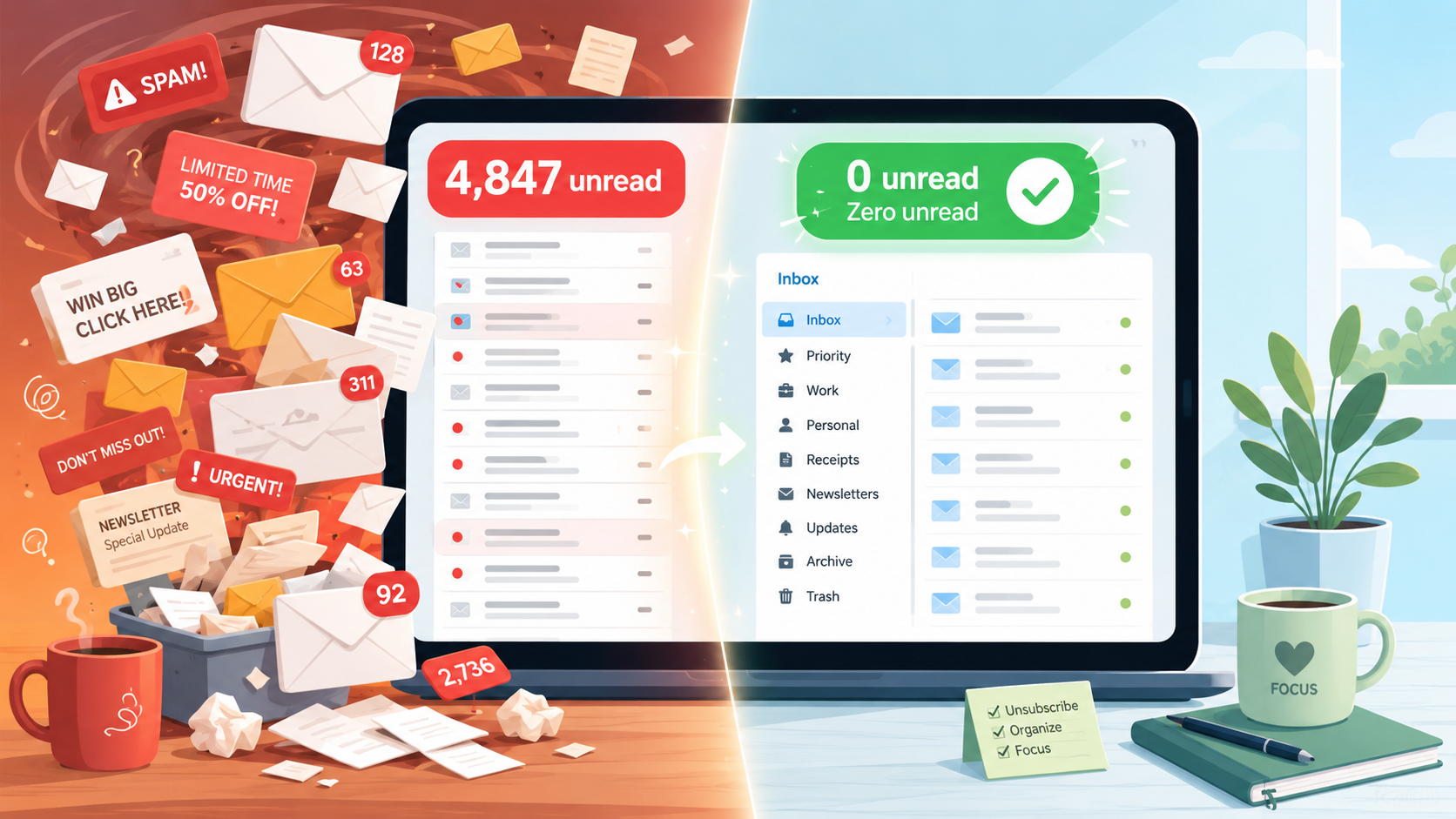
You open your email and there it is: 4,847 unread messages. Maybe it is more. Maybe you stopped counting. You tell yourself you will deal with it later, but later never comes, and the number just keeps climbing.
You are not alone and you are not disorganized. You are simply the target of an industry that has spent decades perfecting the art of filling your inbox faster than you can empty it.
The average professional receives more than 120 emails per day. That is roughly one every four minutes during a standard workday, before you have even had your coffee. And the fix, it turns out, is not discipline. It is strategy.
Here is how to take your inbox back, step by step, in a single afternoon.
Step One: Declare Email Bankruptcy on the Old Stuff
Before you organize anything, you need to make a decision about the mountain of old email already sitting in your inbox. Here is the honest truth: you are almost certainly never going to read most of it.
In Gmail, use the search bar to filter emails by date and delete in bulk. In Outlook, click the sort dropdown, select By Date to display the oldest emails first, and delete them in batches. A practical rule of thumb is anything older than six months that is not a receipt, a legal document, or a personal message from a real person can go. Archive what you are not sure about. Delete the rest.
If the idea of deleting thousands of emails feels paralyzing, try this instead: create a folder called “Old Inbox,” drag everything currently in your inbox into it, and declare your inbox empty. You now have a clean slate. The old folder sits there if you ever desperately need something from it, but it is out of your way.
Step Two: Stop the Bleeding With Unsubscribes
Cleaning your inbox without unsubscribing from unwanted emails is like mopping the floor while the tap is still running. The clutter will be back within days.
In Gmail, click on a promotional or newsletter email, look for the Unsubscribe link next to the sender’s name at the top of the email, and click it. A confirmation pop-up will appear. Confirm and you are done. In Outlook, the same Unsubscribe link typically appears at the top of the email near the sender name, or at the very bottom of the message body.
A word of caution that is relevant to Dr. Tom’s usual beat: while manually unsubscribing from legitimate newsletters is safe, be careful with unsolicited emails from senders you do not recognize. Clicking an unsubscribe link in a genuine spam or scam email can actually confirm to the sender that your address is active, leading to more spam rather than less. For email from companies you have never dealt with, delete without clicking anything.
The Best Tools for Taming Promotional Email Fast
If you have accumulated dozens or hundreds of subscriptions over the years, unsubscribing manually one by one is tedious. Several free and low-cost tools do the heavy lifting for you. Here is a rundown of the best options available right now.
Leave Me Alone (leavemealone.com) is the most privacy-conscious option on this list. It sends actual unsubscribe requests to senders rather than simply filtering their email into a folder, meaning the sender genuinely removes your address from their list. It also offers a Rollup feature that consolidates newsletters you want to keep into a single daily digest. Works with Gmail, Outlook, and iCloud. Free tier available.
Clean Email (clean.email) is the most complete option for full inbox management. It combines true unsubscribe requests with automation rules that run in the background, support for multiple accounts simultaneously, and Auto Clean rules that automatically delete promotional mail older than 30 days or archive newsletters by sender. Works with Gmail, Outlook, Yahoo, iCloud, and any IMAP account. Free tier available with paid plans starting around $9.99 per month.
Unroll.me (unroll.me) is the most familiar name in this space and the easiest to get started with. It scans your inbox, shows you every subscription in one dashboard, and lets you unsubscribe from multiple senders in a single session. However it has faced scrutiny in the past for sharing anonymized user data with third parties. If privacy is a concern, Leave Me Alone or Inbox Zapper are better alternatives. Free to use.
Inbox Zapper (inboxzapper.com) makes one promise: your email data will never leave your device. Most unsubscribe apps work on their own servers to process your inbox, but Inbox Zapper works locally on your device. It uses AI to find and group senders intelligently and lets you delete and unsubscribe from them all at once. Gmail only. Free plan available with volume limits.
Mailstrom (mailstrom.co) is best for power users tackling very large or long-neglected inboxes. It groups emails by sender, subject, social network, retail site, and mailing list, then lets you archive or delete thousands of messages in bulk with a single action. Works with Gmail, Outlook, Yahoo, and iCloud. Free tier available.
SaneBox (sanebox.com) is a more sophisticated AI-powered option that goes beyond unsubscribing. SaneBox categorizes incoming emails into folders based on their importance and relevance, such as SaneLater for less urgent messages and SaneNews for newsletters and promotional content, keeping your main inbox focused on what actually matters. Works with any IMAP-based email provider. Paid only, starting around $7 per month with a free trial.
One important safety note that applies to all of these tools: every one of them requires you to grant access to your email account in order to scan your inbox. This is a significant permission. Before connecting any third-party tool to your email, make sure you are signing up from the official website, reading the privacy policy to understand how your data is handled, and using a tool from a reputable developer with a track record.
Step Three: Set Up Four Folders and Let Filters Do the Work
For most people, four top-level folders cover 95% of inbox traffic. Action for emails requiring a response or task. Reference for receipts, confirmations, and documents you may need later. Reading for newsletters and non-urgent updates you want to keep. Archive for everything else you want to save but not see.
Once those folders exist, set up filters in Gmail or rules in Outlook to route incoming email automatically without you ever having to touch it. A receipts filter that catches anything from no-reply addresses or containing the words receipt, invoice, or order confirmation routes it to Reference automatically. A shipping filter catching emails from UPS, FedEx, USPS, and DHL routes tracking updates out of your inbox. A newsletter filter catching anything with a list-unsubscribe header routes promotional content to your Reading folder, keeping it out of your main inbox entirely.
Setting up these three filters alone takes about ten minutes and can eliminate the majority of inbox noise permanently.
Step Four: Apply the One-Touch Rule Going Forward
The single most effective habit for keeping an inbox clean is also the simplest: handle each email exactly once.
When an email arrives, you have four options. Reply to it immediately if it takes less than two minutes. Move it to Action if it requires more thought or time. Move it to Reference if it is information you need to keep. Delete or archive it if you do not need it at all.
The mistake most people make is opening an email, deciding they will deal with it later, and leaving it in the inbox. That single habit is responsible for most inbox clutter. An email that has been opened but not acted on is just a to-do item dressed up as a message, and it will haunt you every time you open your inbox.
Step Five: Schedule Two Short Sessions Per Day
Block out ten to fifteen minutes two or three times a day to go through your emails rather than checking constantly throughout the day. Focus on handling similar emails in bulk, work-related ones first, then promotional emails.
Checking email continuously throughout the day is one of the most common productivity drains in modern life. Batching it into two or three short dedicated sessions means you are in control of your inbox rather than the other way around.
Set a reminder to clean up your inbox once a month to stay on top of new subscriptions that inevitably creep back in over time. A monthly ten-minute sweep is all it takes to keep the system running smoothly once it is set up.
Your inbox is not going to organize itself. But with one focused afternoon and a few simple habits, it can go from a source of daily stress to something that actually works for you.
Stay safe out there, and I will see you next week!
Feeling lost in the digital world? Dr. Tom is here to help!
Sign up for our Sunday Spectator. Delivered to your inbox every Sunday, with all the news from the week.

Thomas Hyslip lives in Tega Cay with his wife and daughter. After 27 years in the U.S. Army and Federal Law Enforcement, he retired to pursue his passion for teaching. Tom is now an Assistant Professor of Instruction at the University of South Florida. In 2 short years he has won 10 awards from the South Carolina Press Association, including first place in column writing, education beat reporting and best podcast.